Scenario - R/F Inviews and Delays
This scenario was developed to explain and demonstrate the following capabilities of NOS3:
The capability to track a satellite’s progression over a ground station and limit radio contact to only times when the satellite is in view of the ground station.
The capability to limit communication between ground station and spacecraft based on a minimum Carrier to Noise Ratio (CNR) requirement.
The capability to model speed-of-light communication delays between a ground station and a spacecraft.
This scenario was last updated on 06/11/2026 and leveraged the dev branch at the time [645d9bec].
Learning Goals
By the end of this scenario, you should be able to:
Set up NOS3 to restrict communications to the simulated spacecraft radio based on its location and view of the ground.
Set up NOS3 to restrict communications to the simulated spacecraft radio based on the Carrier to Noise Ratio (CNR).
Observe speed-of-light communication delays between the spacecraft radio and the ground.
Prerequisites
Before running the scenario, complete the following steps:
Walkthrough
Note that the ability of NOS3 to constrain radio functionality based on inviews or Carrier to Noise Ratio, as well as the ability to simulate light time delays, is all configurable. By default it is configured to be off, so the first thing we need to do is to turn it on:
First, navigate to the
cfg/sims/nos3-simulatorfile.In that file, search for the
GENERIC_RADIO_42_PROVIDER.Change the
uplink-close-criteriaand thedownlink-close-criteriatoocculted.Also change the
uplink-delay-onand thedownlink-delay-onto true.
With a terminal navigated to the top level of your NOS3 repository, run make clean and make:
make cleanmake
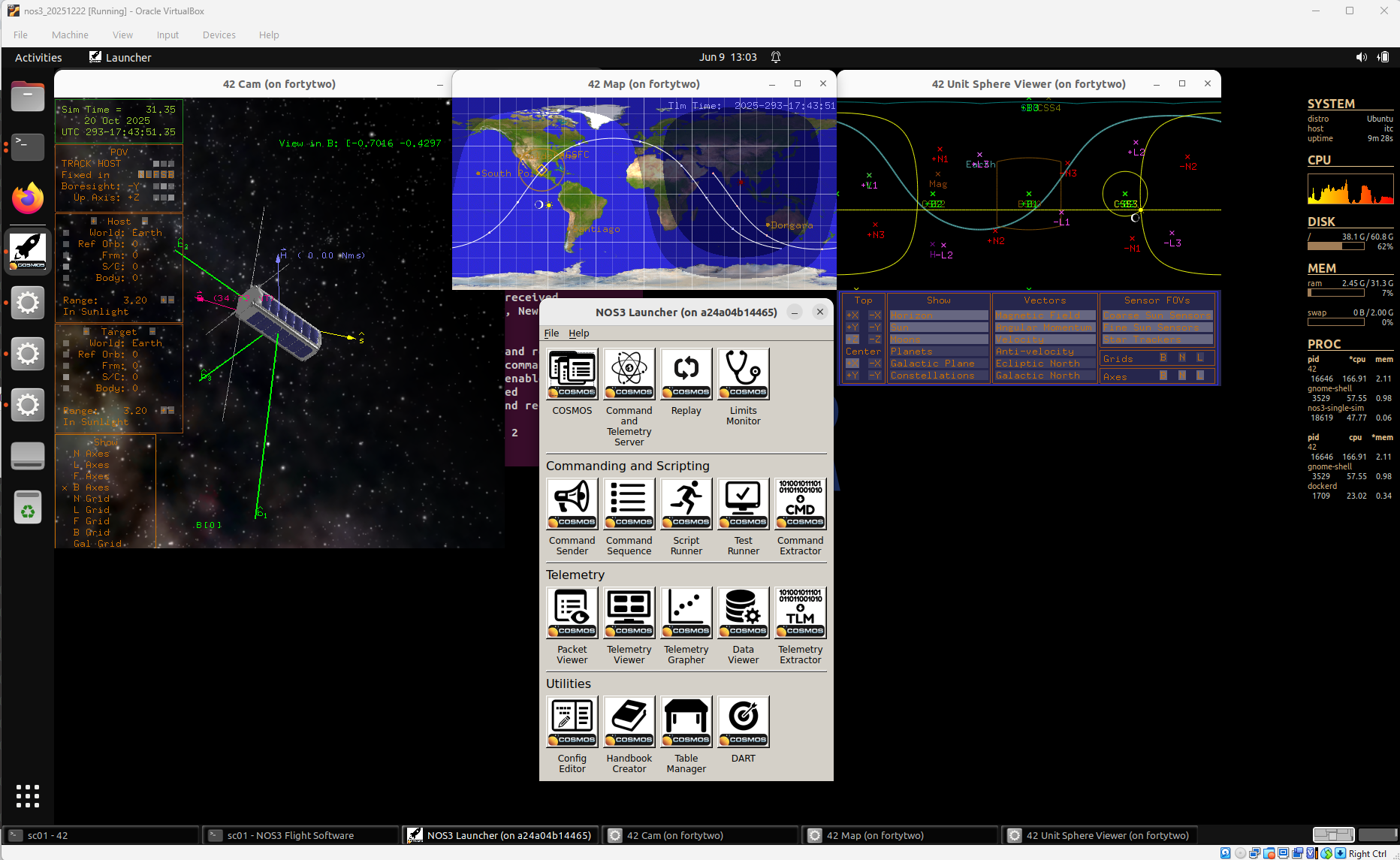
Next, launch NOS3 (using make launch) and open COSMOS using the COSMOS button in the NOS3 Launcher window:
Next, examine the 42 map window.
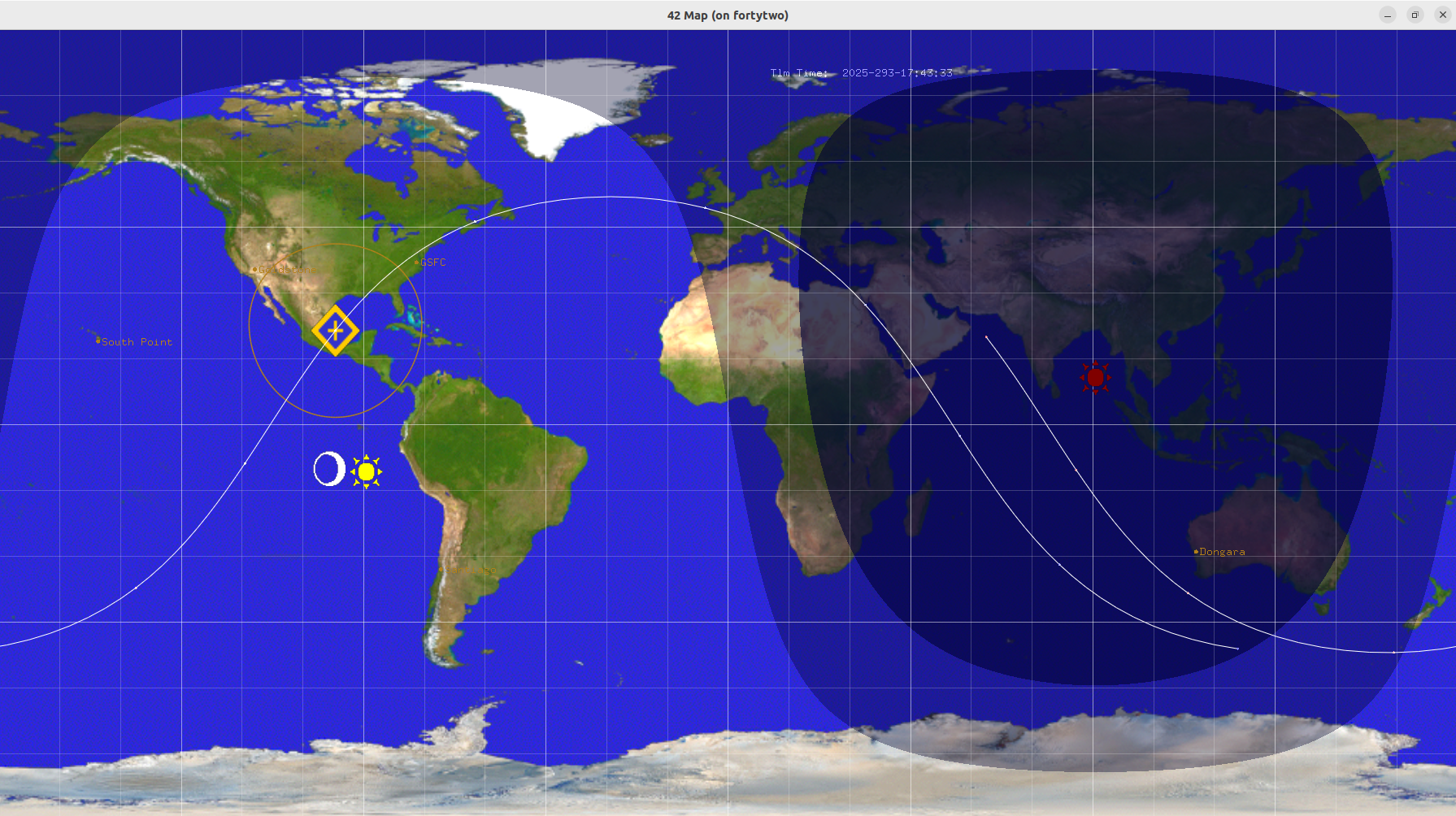
The spacecraft position is indicated by the yellow diamond with the plus inside. The orange circle surrounding the spacecraft represents the part of the Earth where the satellite is in view at any given moment. In this scenario, GSFC is the ground station and it is shown as an orange dot with the GSFC label beside it. Note that at the beginning of the scenario, the GSFC dot is not within the spacecraft’s orange inview circle.
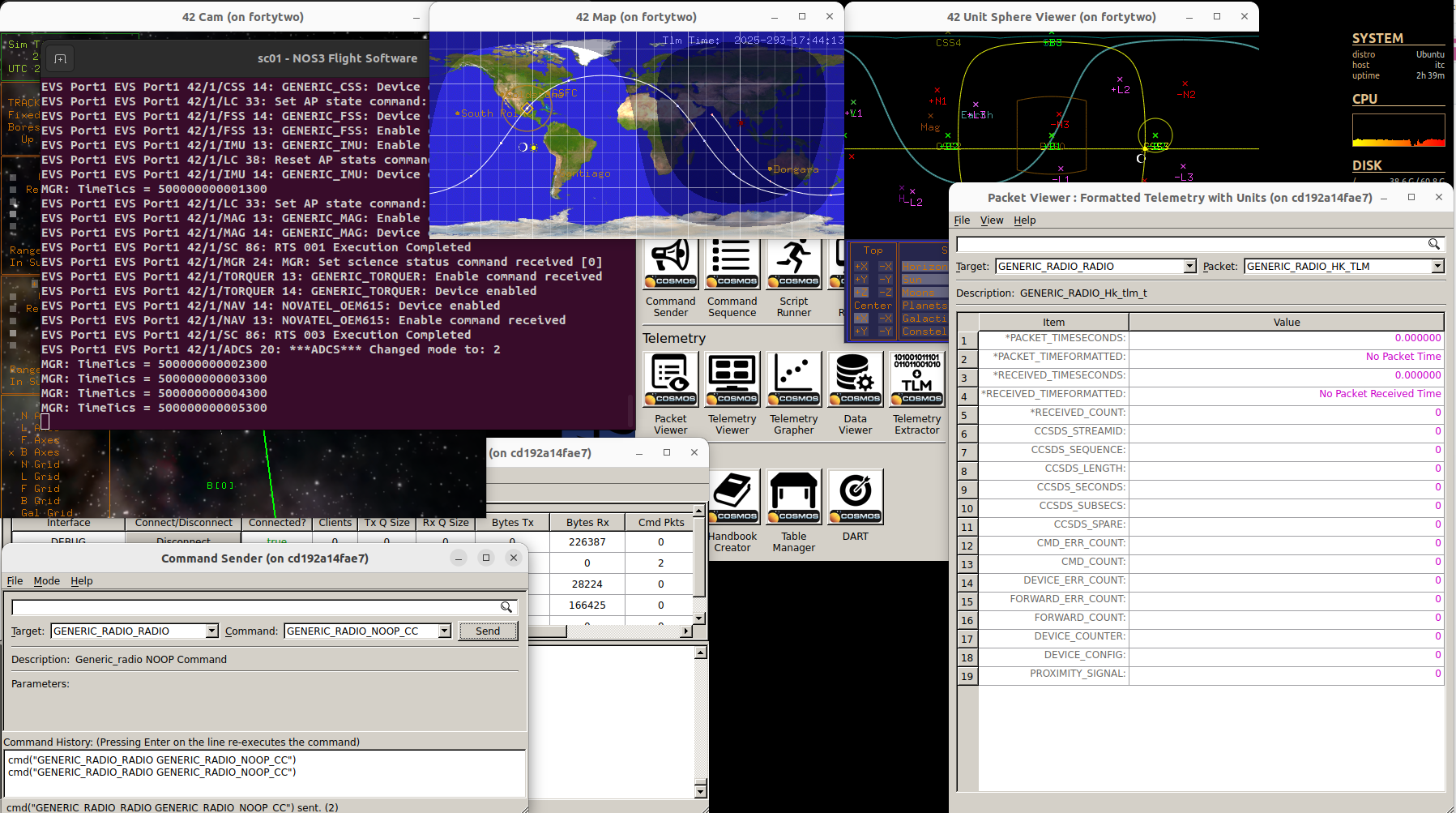
While GSFC is not in view of the satellite, try sending a GENERIC_RADIO_NOOP_CC command to the spacecraft, using the target GENERIC_RADIO_RADIO.
Note that the command does not show up in the flight software window.
The radio has filtered the command as not occurring because the satellite is not in view of the ground station.
In addition, examining the packet viewer window, we can see that for both the generic radio packets (GENERIC_RADIO_RADIO and GENERIC_RADIO_HK_TLM), no telemetry is being received.
This is because the satellite is not in view of the ground station.
These results can be seen in the figure below:
Watching the 42 Map window, we can see that GSFC comes in view of our satellite at approximately 17:44:30.
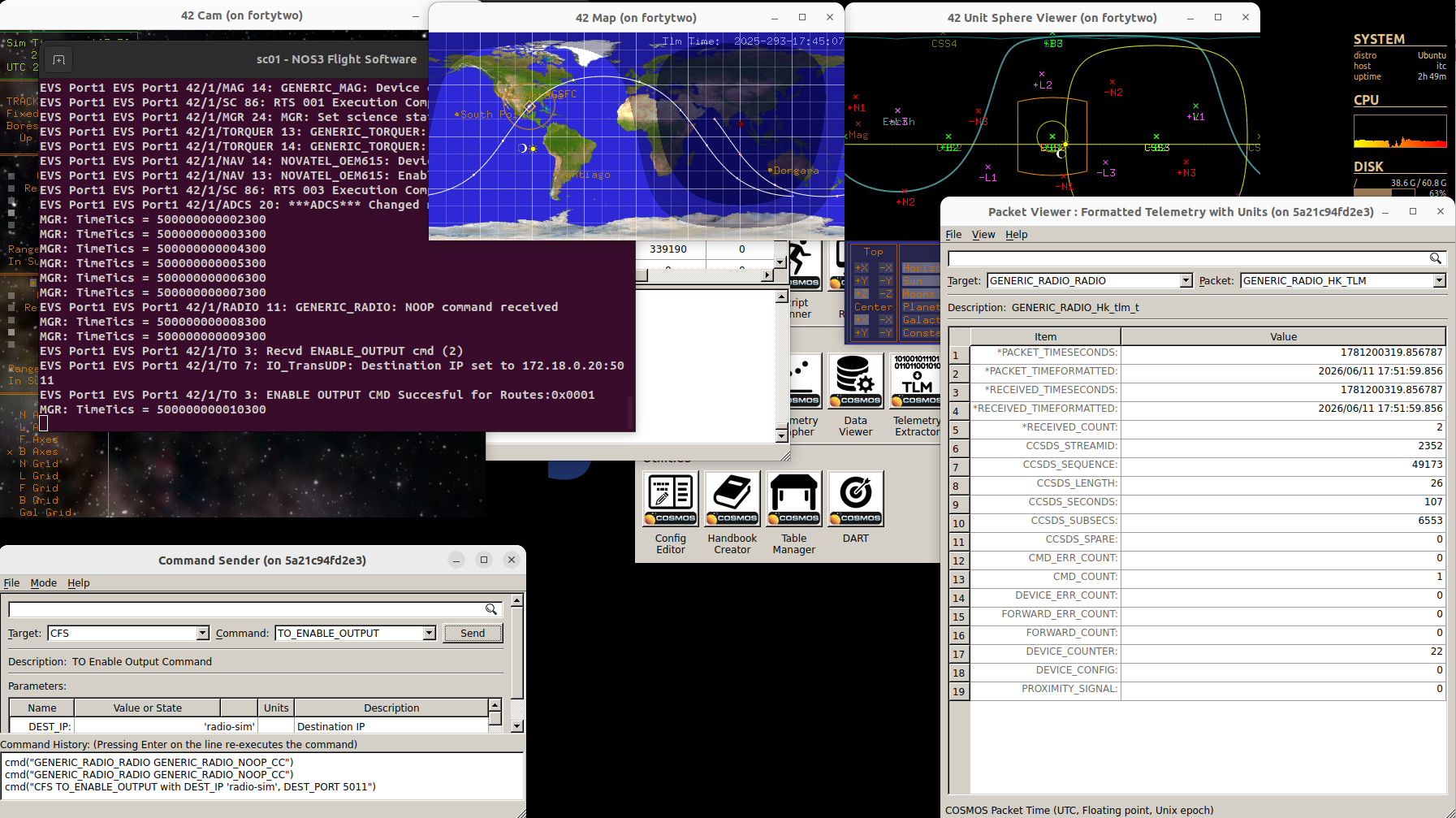
Once the inview starts, try sending the same command as before (GENERIC_RADIO_RADIO, GENERIC_RADIO_NOOP_CC).
The NOOP command is now received. This can be seen in the sc01 - NOS3 Flight Software window, depicted in the figure below.
Also send the CFS, TO_ENABLE_OUTPUT command. Once this has been done, telemetry will begin to be received to the GENERIC_RADIO_RADIO interface, as depicted below in Packet Viewer (look specifically for GENERIC_RADIO_RADIO and GENERIC_RADIO_HK_TLM):
Now run make stop to halt the scenario.
Next, we will demonstrate constraining the radio using the Carrier to Noise Ratio (CNR).
This is accomplished by (again) editing the cfg/sims/nos3-simulator.xml file:
In that file, search for the
GENERIC_RADIO_42_PROVIDER.Change the
uplink-close-criteriaand thedownlink-close-criteriatocnr.Also, edit the file
cfg/InOut/Inp_IPC.txt. In that file search forRadio IPC. Change theEcho to stdoutfromFALSEtoTRUE. Runmaketo rebuild the scenario software, thenmake launchto launch it again. Again, open COSMOS by using theCOSMOSbutton in theNOS3 Launcherwindow. Bring thesc01 - 42andsc01 - NOS3 Flight Softwarewindows into view. Now try sending theCFE_ES_NOOPcommand to theCFS_RADIOtarget.Note that it does not make it through to the
sc01 - NOS3 Flight Softwarewindow.Also note that in the
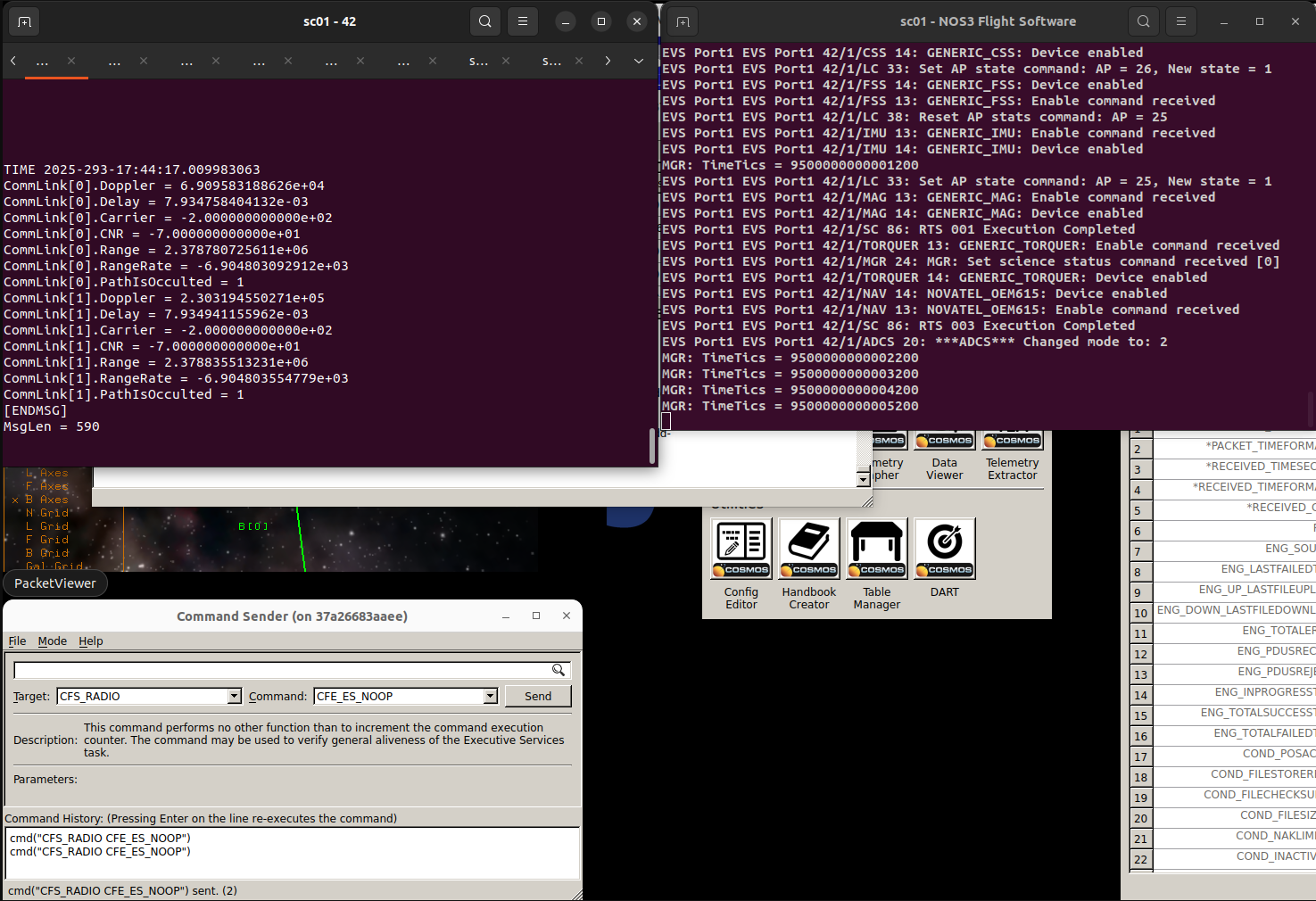
sc01 - 42window, theCommLink[0].CNRvalue is lower than the threshold value of 15 in thecfg/sims/nos3-simulator.xmlfile, which is why the command does not make it through. To make it easier to view the constantly updating windows, time can be paused using thepkey in theNOS Time Driverwindow. The figure below shows these results:
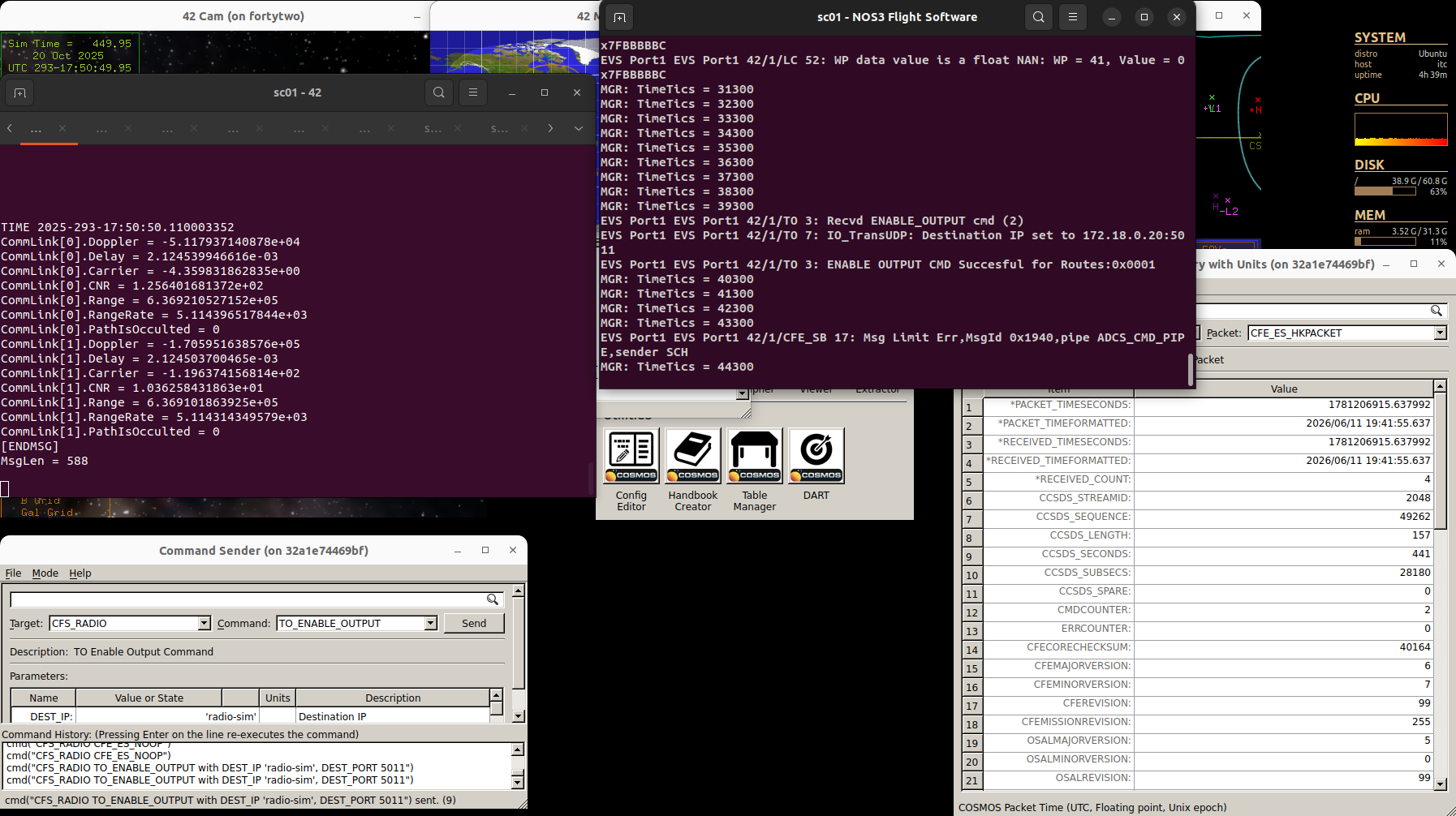
Watching the sc01 - 42 window, we can see that the CommLink[0].CNR value exceeds 15 at about 17:45:15.
At this point we can send commands, but not yet receive telemetry; to see when telemetry downlink is active we watch CommLink[1].CNR.
Its value exceeds 15 at about 17:50:34 and we then can see telemetry start to be downlinked in the Packet Viewer.
The figure below shows these results:
Next we will observe the uplink delay modeling in the radio simulation.
To do so, we need a deep space scenario, since the delay for earth orbiting satellites is almost negligible.
First run make stop to terminate the current running scenario.
Next we will again modify the file cfg/nos3-mission.xml.
Change the value of
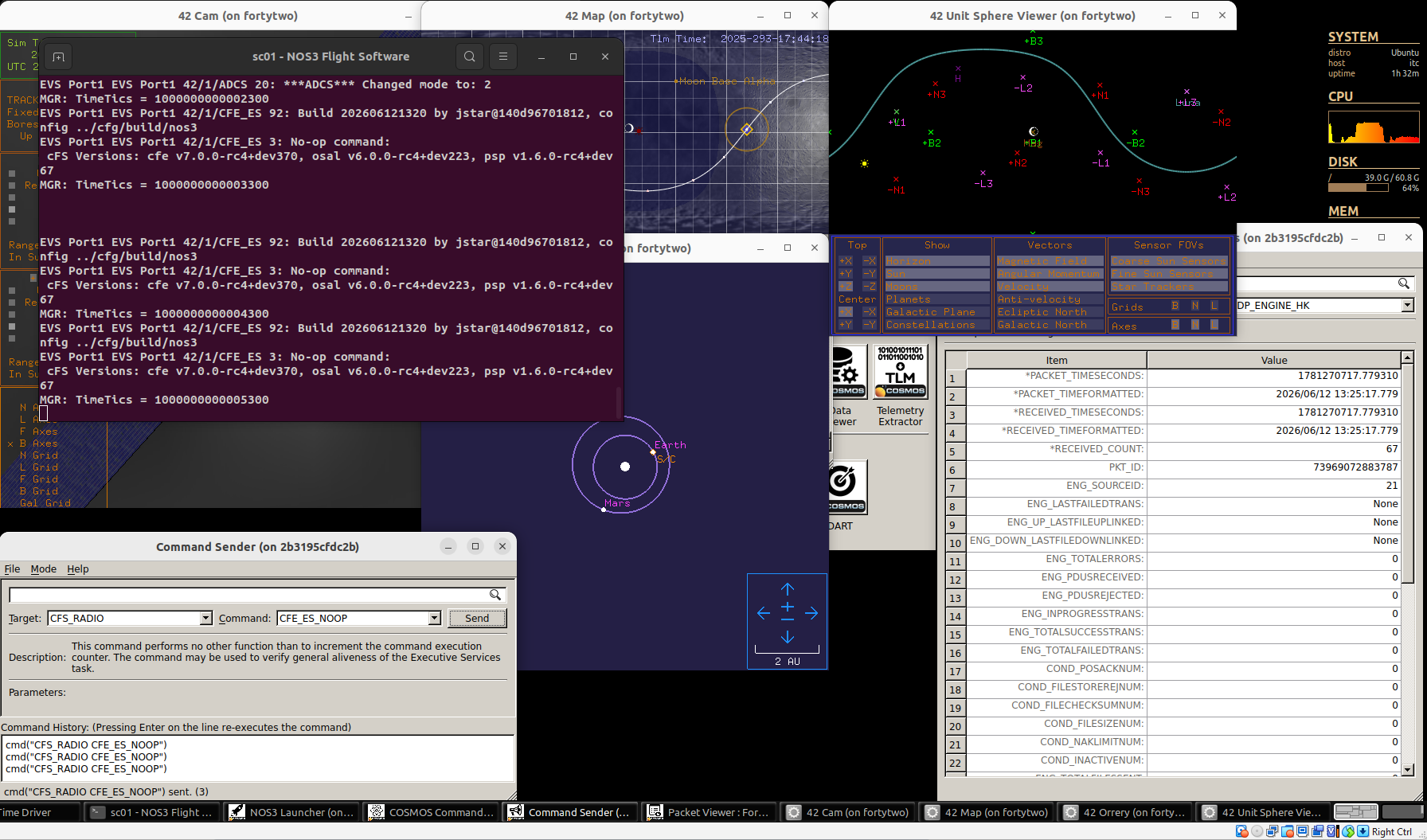
scenariofromSTF1toDeepSpace. Next runmake cleanandmake. Runmake launchto start the scenario. Use theCOSMOSbutton to open COSMOS. Bring thesc01 - NOS3 Flight Softwarewindow to the front. From theCommand Senderexecute theCFE_ES_NOOPcommand on the targetCFS_RADIO. In thesc01 - NOS3 Flight Softwarewindow we see that the receipt of the command is delayed by a little over a second.
This corresponds to the amount of time it takes light to travel from Goldstone (a ground station on Earth) to the satellite (orbiting the Moon). This can be seen in the figure below:
This completes the learning goals for this scenario.