Scenario - Nominal Operations
This scenario was developed to explain and demonstrate the standard (nominal) operation of a satellite pass for a satellite in orbit, using NASA Operational Simulator for Space Systems (NOS3). It demonstrates the use of the ground software (GSW) for commanding and for the expected return telemetry, as well as making use of flight software (FSW) and simulators.
This scenario was last updated on 06/03/2025 and leveraged the dev branch at the time [a3e7c100].
Learning Goals
By the end of this scenario, you should be able to:
Connect to the simulated spacecraft at the beginning of a simulated pass.
Send commands to change state or downlink data.
Understand what portions of NOS3 would be accessible or visible in the context of a real satellite.
Recognize anomalous telemetry.
Take a simulated pass with NOS3.
Prerequisites
Before running the scenario, complete the following steps:
Walkthrough
With a terminal navigated to the top level of your NOS3 repository, run make clean and make:
make cleanmake
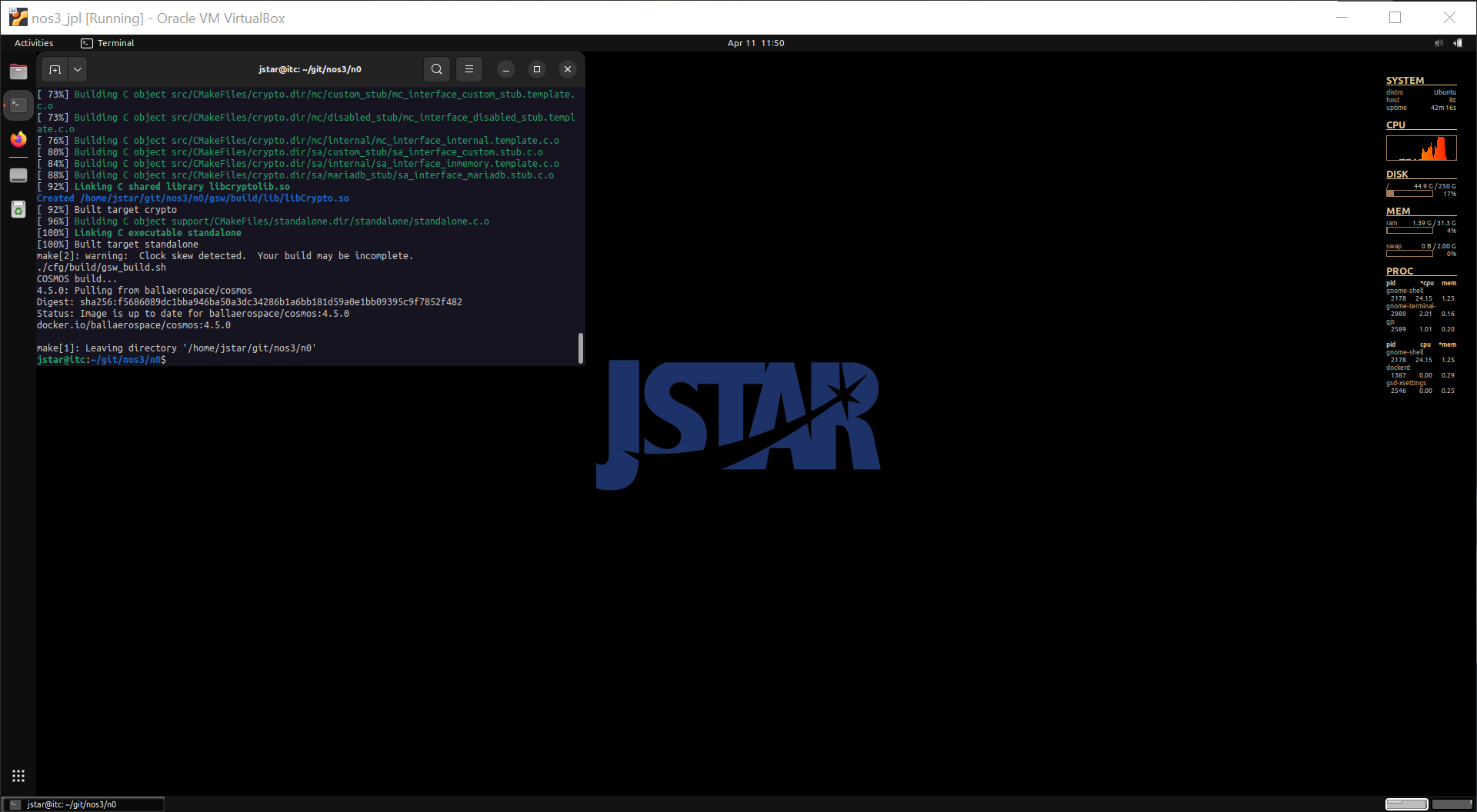
Then, launch NOS3 (using make launch) and open COSMOS using the COSMOS button in the NOS3 Launcher window:
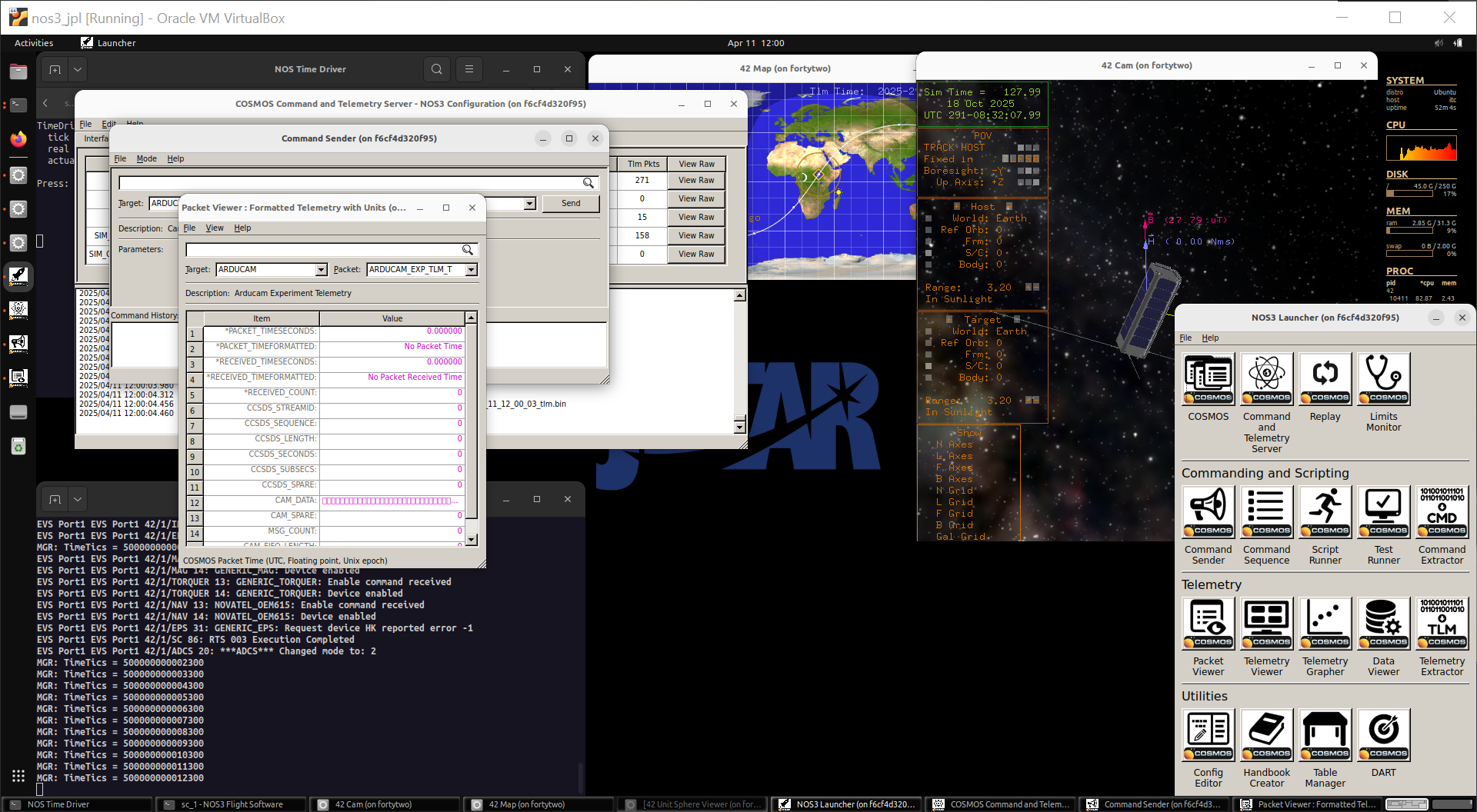
Taking a pass automatically via scripting
Connect to the Spacecraft
Before you can do anything else with the spacecraft, you must connect to it.
In the following script, this is done at least partly automatically (the RADIO interface is connected automatically), but with a real satellite this would have to be done first, in conjunction with the ground station and at the appropriate time for when your particular satellite would be in range. Note that the COSMOS DEBUG interface is supposed to be like having a direct interface to the spacecraft from the ground system using a debug port; while the COSMOS RADIO interface is supposed to be like interfacing the ground system to the spacecraft using a radio.
Execute the pass script
Open the script runner from the NOS3 Launcher.
In the script runner, perform File->Open... and choose the gsw/cosmos/config/targets/MISSION/procedures/nominal_ops.rb script.
Press Start:
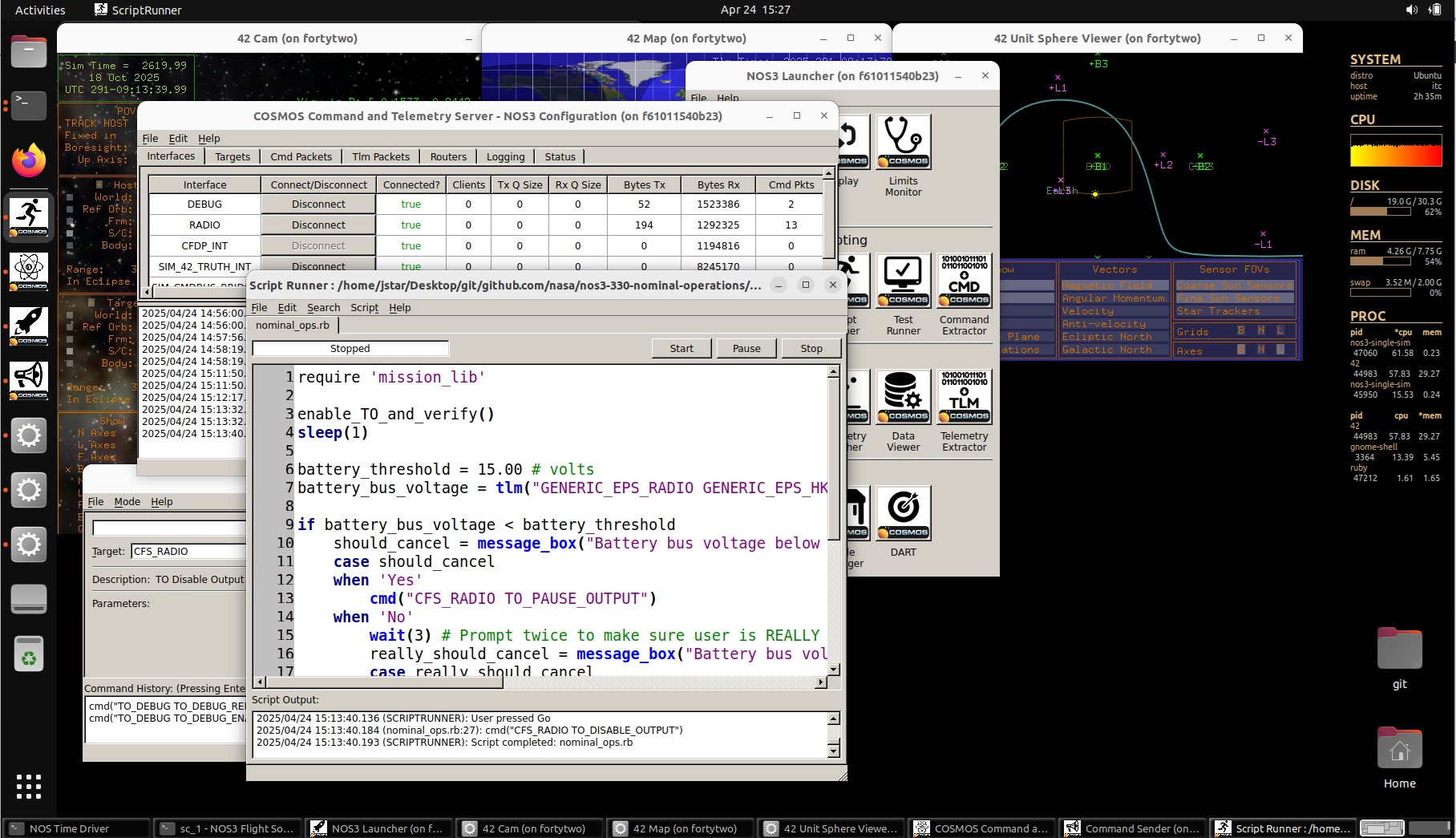
This script will approximate several aspects of taking a pass including enabling telemetry output, verifying spacecraft health via battery telemetry, and downlinking a file.
NOTE: The user must select Go in the script runner window when they are done commanding for the pass, since the script does not stop and disconnect COSMOS automatically.
Also, typical passes are of short duration (8-10 minutes) and it is up to the operator to keep track of time and when the pass ends.
Taking a pass manually
Connect to the Spacecraft
Before you can do anything else with the spacecraft, you must connect to it. With a real satellite this would have to be done first, in conjunction with the ground station and at the appropriate time for when your particular satellite would be in range. In NOS3, however:
Commanding is always connected to the
RADIOinterface.Telemetry can be connected to the
RADIOinterface by:Navigate to the
CFS_RADIOtarget in the COSMOS Command Sender.Send the command
TO_ENABLE_OUTPUTto theCFS_RADIO.DEST_IP = ‘radio_sim’
DEST_PORT = ‘5011’
Confirm Telemetry is Nominal
COSMOS Alone
The first task is to confirm that spacecraft telemetry is nominal by checking that data is being downlinked and that commands are being sent.
Both can be confirmed by use of the NOOP command.
On an actual spacecraft, the only information to which you would have access would be COSMOS and its associated outputs.
As such, we will start by looking only at those to confirm that the spacecraft is in a nominal state before looking at other, simulation only, sources of information.
Among the COSMOS windows, make sure the Command Sender and Packet Viewer are both visible, and in both, navigate to the GENERIC_IMU_RADIO Target:
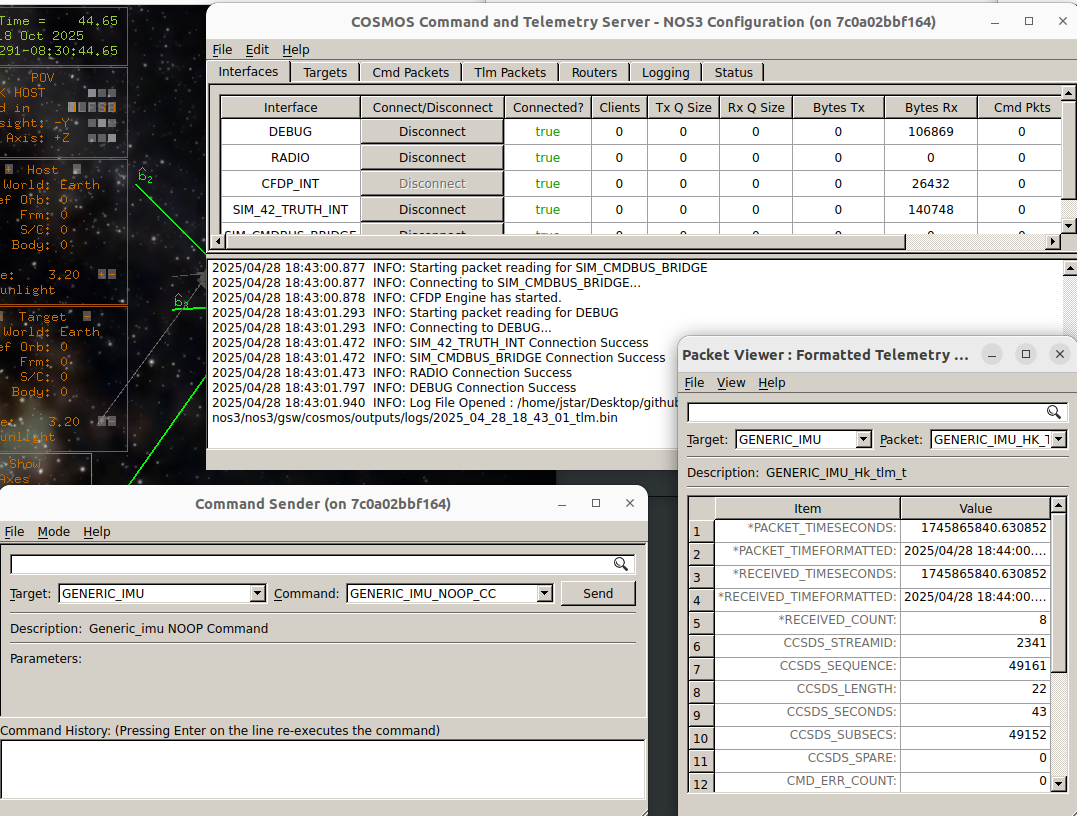
Within the Packet Viewer, it is possible to see both housekeeping information and regular data, which will allow confirming that information is being sent down and that the satellite is not spinning or in a bad physical state (the values of the IMU’s rotational sensors should all be near zero).
Now, to confirm that ground commands have an impact on the IMU, start by sending a NOOP command.
This should increment the command counter under the housekeeping data, like so:
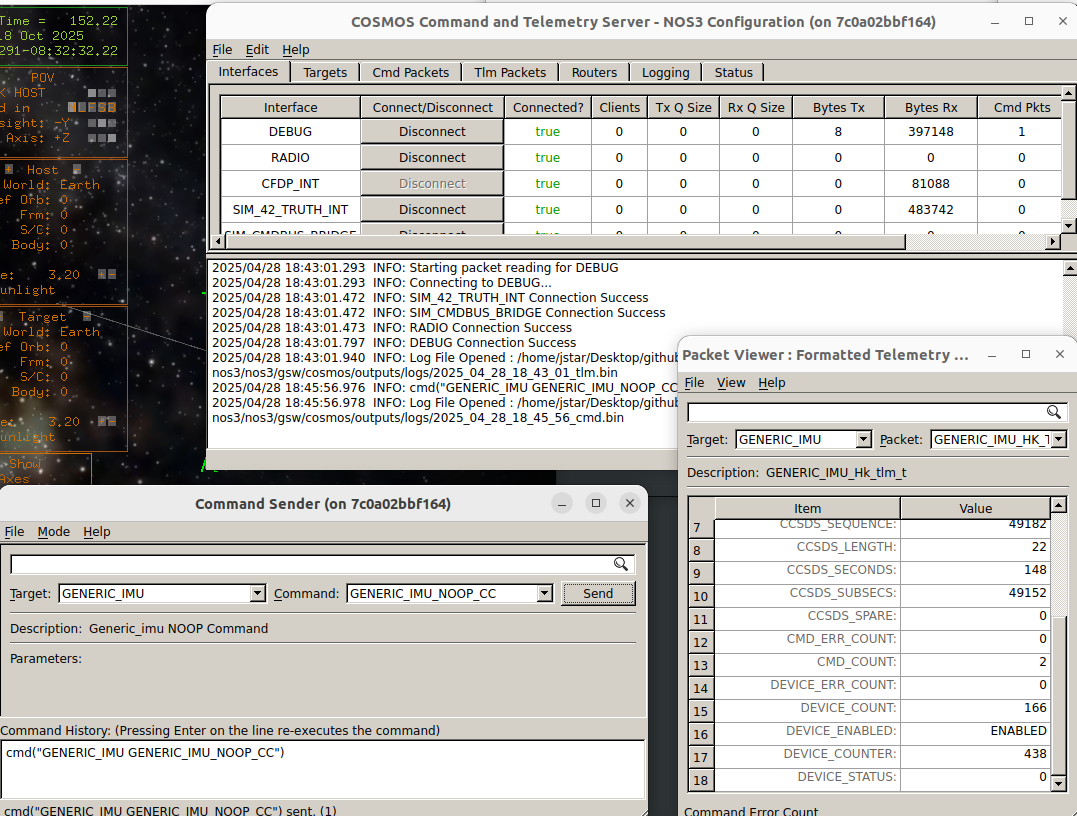
Note that the command counter is 2, whereas it should previously have been 1. Note also that there can be a few second delay between sending the command and the counter reflecting receipt of the command because the telemetry is only received every few seconds.
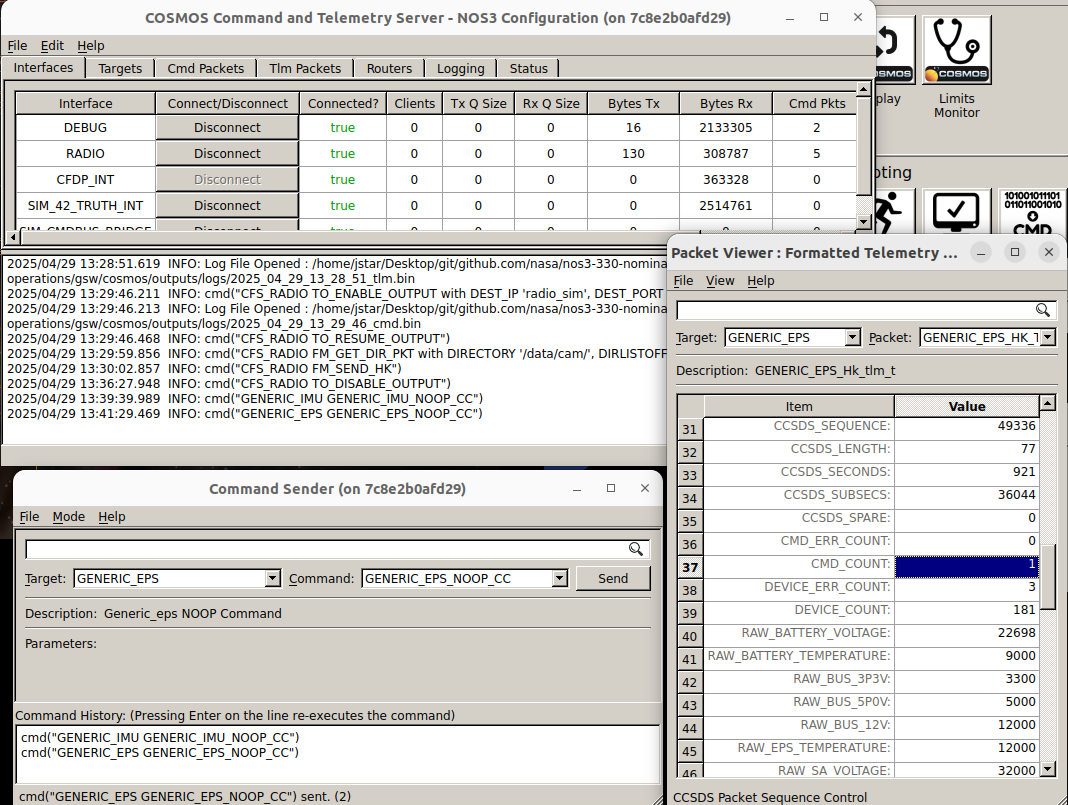
The other component which should be checked to ensure nominal operations is the electrical power system, or EPS.
Check that the EPS is sending telemetry and is able to receive commands by sending a NOOP command and verifying that the command counter increases.
EPS telemetry should also show BATT_VOLTAGE as a healthy state of charge (e.g. greater than 24V).
42 and the Simulator
On an actual mission, COSMOS commands and telemetry would be all the information you have available. When running in a simulator, however, there is more information to which you have access, and which can tell you in fairly short order about the state of the spacecraft and whether it’s in nominal operations.
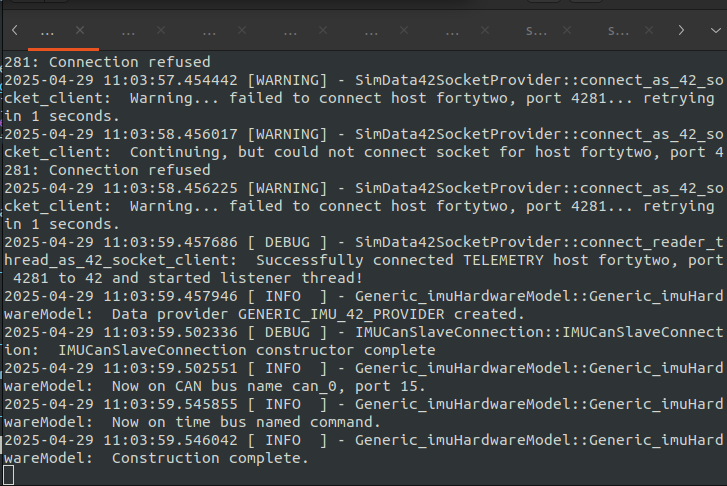
The two other places where information about the spacecraft state is available are 42 and the various simulators. The simulators are all launched as tabs on the terminal from which you launched NOS3, and a simulator in a nominal state will be both running and (likely) have some message indicating its successful launch and connection to the buses. Below is an image of the Generic IMU simulator tab, after the simulator has successfully completed construction but before it has begun sending telemetry (which happens automatically):
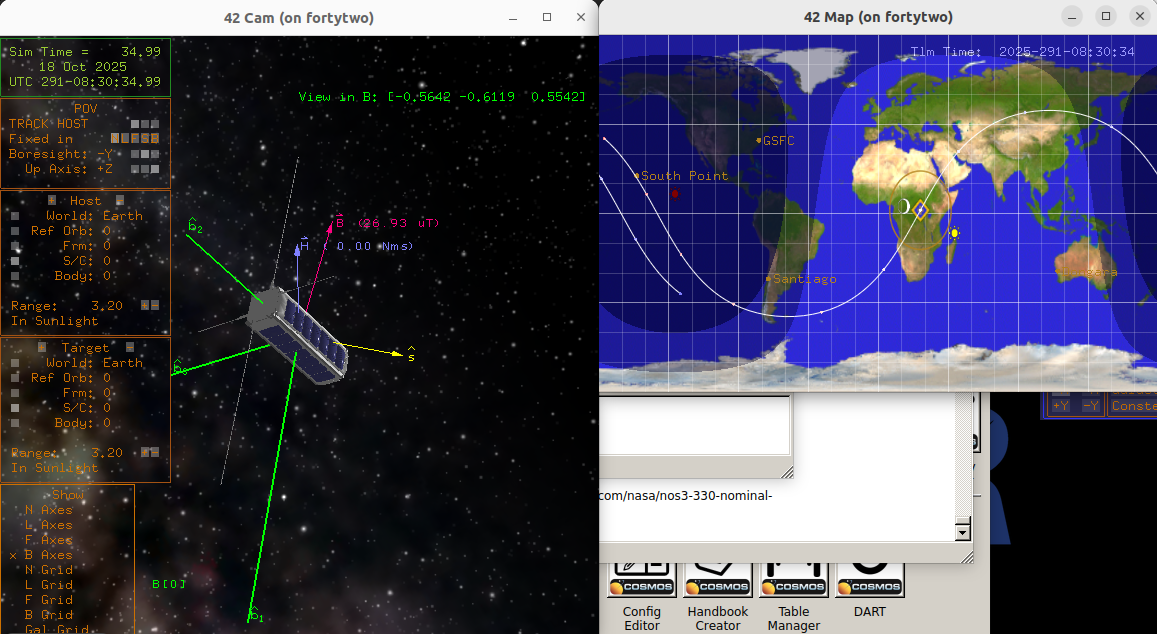
Then, 42 will indicate the state of the spacecraft to some degree. Its 42 Cam window will show whether the spacecraft is rotating significantly, as well as showing the spacecraft attitude with respect to the Sun. The 42 Map window will show the spacecraft location over the Earth:
Send Commands
Once the spacecraft is known to be in a nominal state, the next step is to either send commands or to downlink data. This scenario will provide an example of each.
For an example of sending a command, we will direct the spacecraft to enter science mode. The example spacecraft in NOS3 conducts science using the sample instrument when over the US; it has to be activated into science mode, however, to start performing science. We will do so via COSMOS:
Navigate the Command Sender to the Target
MGR_RADIO.Navigate the Packet Viewer to
MGR_RADIO.
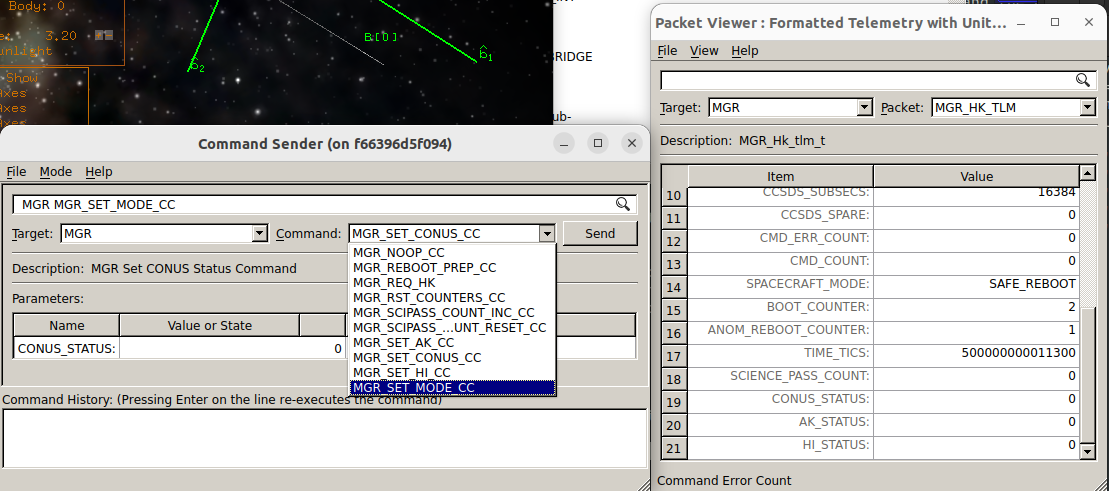
Notice the various commands listed in the dropdown menu. For this we will be sending one to activate science mode (this tells the spacecraft that it’s OK to perform science when conditions allow):
Select the command
MGR_SET_MODE_CC.In this command’s dropdown menu, select
SCIENCEas the mode.Click
Send:
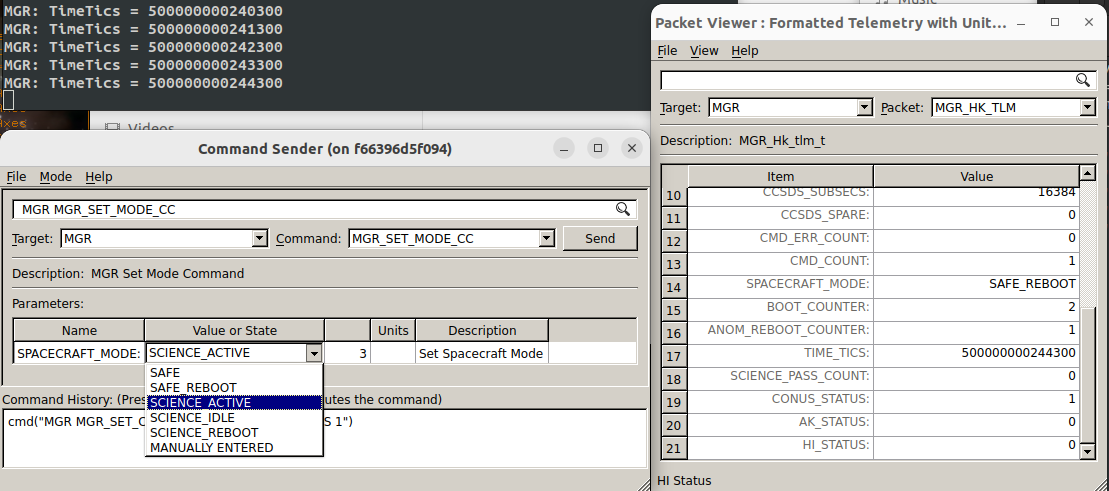
Once sent, the SPACECRAFT_MODE in the Packet Viewer should switch to SCIENCE.
This change can also be seen in the Flight Software (FSW) terminal (SCIENCE is mode 3).
Downlink Data
Next we will go through an example of downlinking data, as this is the other thing likely to be done during a pass.
Our example will be to downlink a file from the on-board data storage using the Consultative Committee for Space Data System Standards (CCSDS) File Delivery Protocol (CFDP).
This will be done using the
CFDPandCFS_RADIOtargets.First, check telemetry for Target
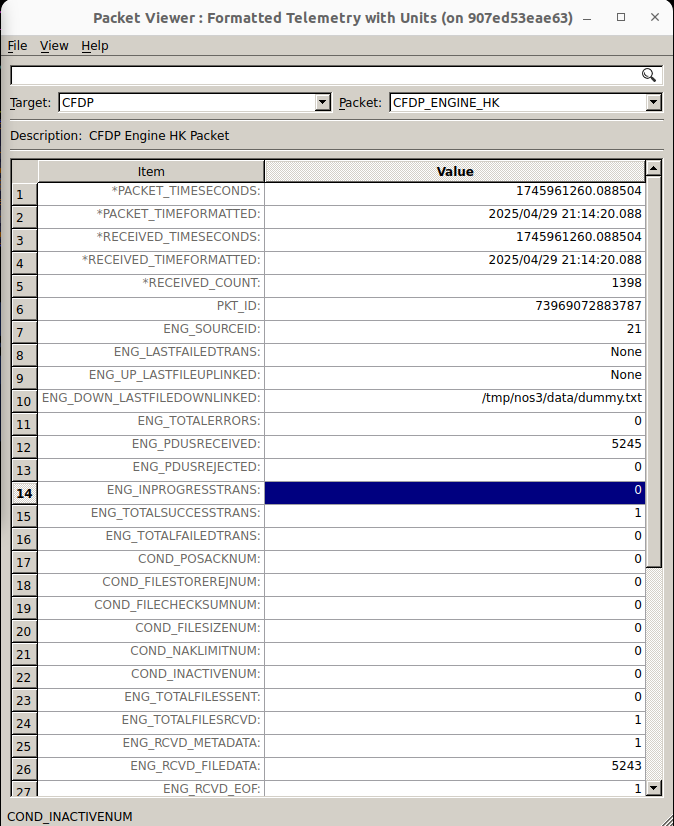
CFDPand PacketCFDP_ENGINE_HK.Make sure
ENG_INPROGRESSTRANSis 0, indicating that no file transfer is currently in progress.In the same packet, make note of the value of
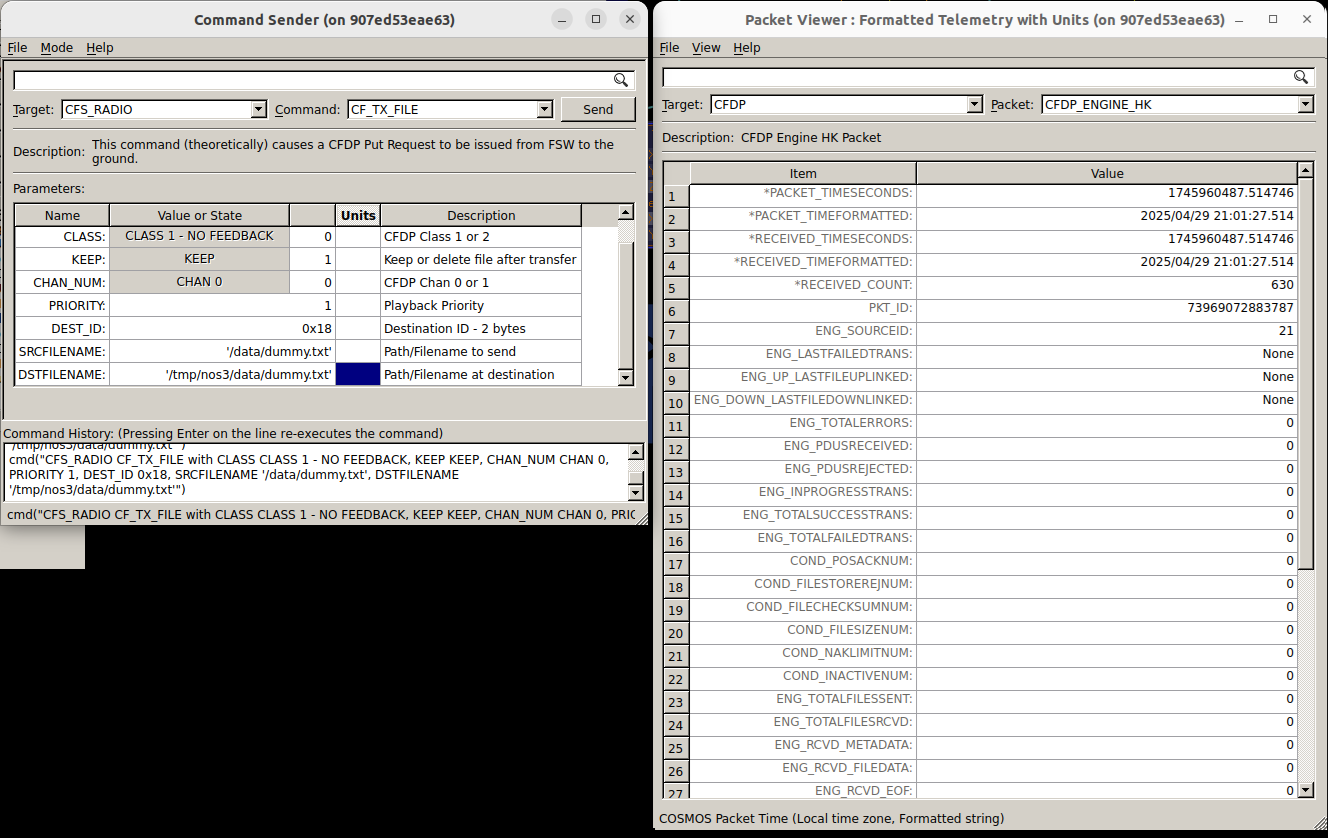
ENG_TOTALSUCCESSTRANS. Next, in the Command Sender window, add a command to downlink data:Set Target to
CFS_RADIO.Issue command
CF_TX_FILEwith the following parameters:CLASS 1 - NO FEEDBACKKEEPCHAN 0PRIORITY
1DEST_ID
0x18SRCFILENAME
'/data/dummy.txt'DSTFILENAME
'/tmp/nos3/data/dummy.txt'The Command Sender and Packet Viewer windows below reflect these choices:
After pressing Send in the Command Sender, switch to the Packet Viewer window:
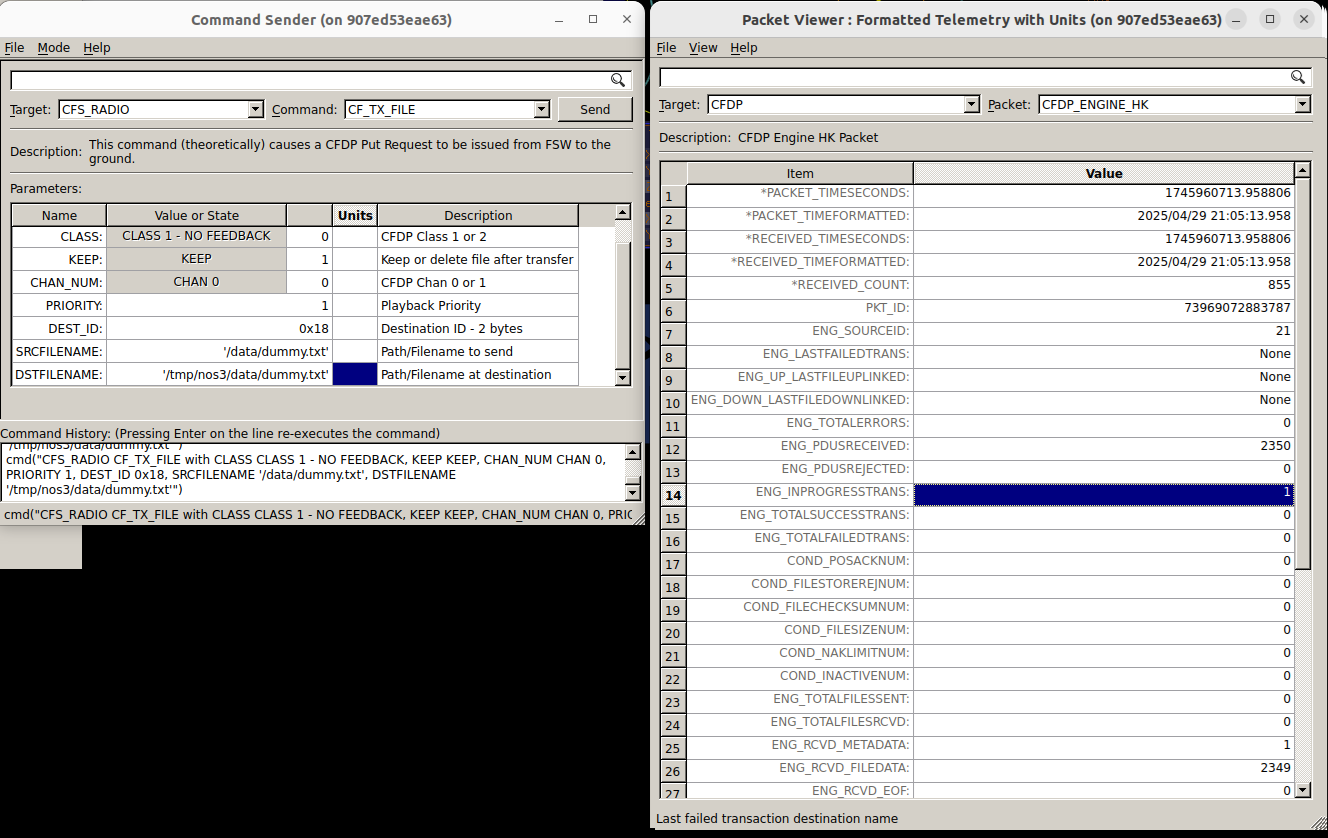
Look at target
CFDP, and packetCFDP_ENGINE_HK:ENG_PDUSRECEIVEDwill be increasing.ENG_INPROGRESSTRANSwill be equal to 1.
These two markers indicate a file transfer is currently in progress.
These windows are shown below:
Once the transfer is completed:
The Packet Viewer window for Target
CFDPand PacketCFDP_ENGINE_HKwill showENG_DOWN_LASTFILEDOWNLINKEDas the destination filename.ENG_TOTALSUCCESSTRANSshould have increased by 1 over the value noted above.This is shown below:
This completes the learning goals for this scenario.